Homeroom
A free Chrome extension from LearnSuite
Your Google Classroom class list, finally searchable
Search, filters and folders for Google Classroom. Teachers carrying eighty classes stop scrolling a wall of near identical cards and open the right one in about a second.
- No sign-in
- No Google permissions
- Nothing leaves your device
- Free
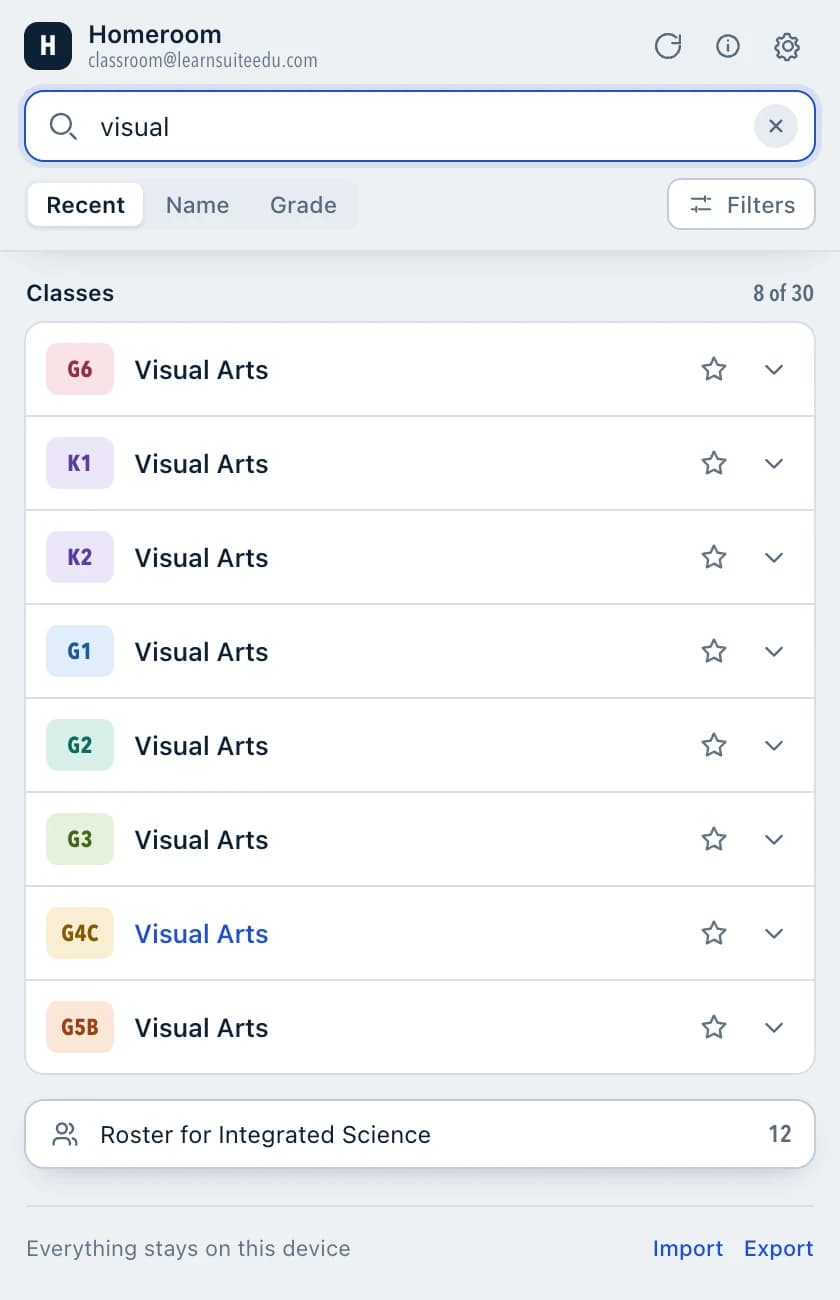
Press Alt + Shift + K from anywhere in Chrome, start typing, press Enter. That is the whole loop.
The class list was fine at six classes
It stops being fine somewhere around twenty. Homeroom was built after an audit of a real school account with eighty-three active classes in it, and it fixes the three things that made that account slow to use.
One flat grid, however long it gets
Google Classroom shows every active class as a card in a single grid, and repeats the same list again in the sidebar. A specialist teacher seeing every grade can end up with eighty cards that all look alike.
Nothing to search or filter with
There is no class search, no grade filter, no year filter and no way to group what you teach on a Tuesday. Finding a class means reading the grid until you spot the right one.
Archiving is too big a hammer
The only built-in way to clear the clutter is to archive a class, which changes it for everyone. Most teachers just want last year's classes out of their own way, not out of the school's records.
How it works
Installed in a minute, learned in one
Homeroom sits on top of Google Classroom. Nothing inside your Classroom account moves, changes or needs preparing first.
- 1
Add it to Chrome
One click from the Chrome Web Store. There is no account to create, no setup wizard and nothing to configure. Homeroom starts working on your existing classes straight away.
- 2
Open the side panel
Go to Google Classroom and press Alt + Shift + K, or Control + Shift + K on a Mac. The panel opens beside your classes and stays there while you move between Stream, Classwork and People.
- 3
Type, then press Enter
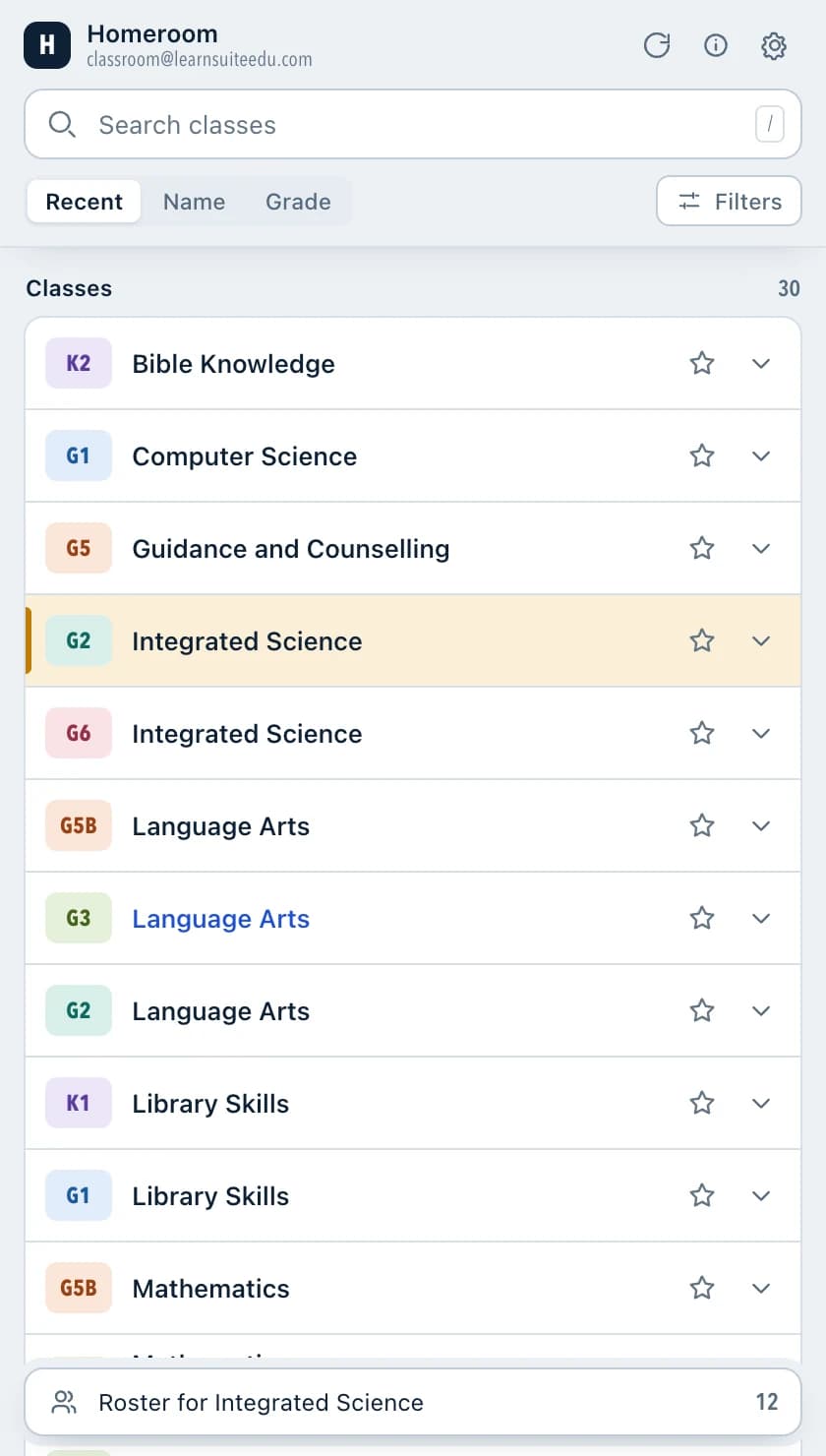
The list narrows with every letter, across class name, teacher, grade, subject, academic year and your own nicknames. Enter opens the top result in the tab you are already in.
Inside the panel
Your own organization layer, on top of Classroom
Folders, favorites, nicknames and hidden classes live in your browser. Your colleagues and your students see Google Classroom exactly as it was.
Search
Search everything that is written on the card
One search box covers the class title, the teacher, the grade, the subject, the academic year, the section field and any nickname you have given a class yourself. Results narrow as you type and the count tells you how far you have got.
- Press the slash key or Control and K to jump into the search box
- Arrow keys move through the results, Enter opens the one you are on
- Escape clears the search and puts the full list back
Filters
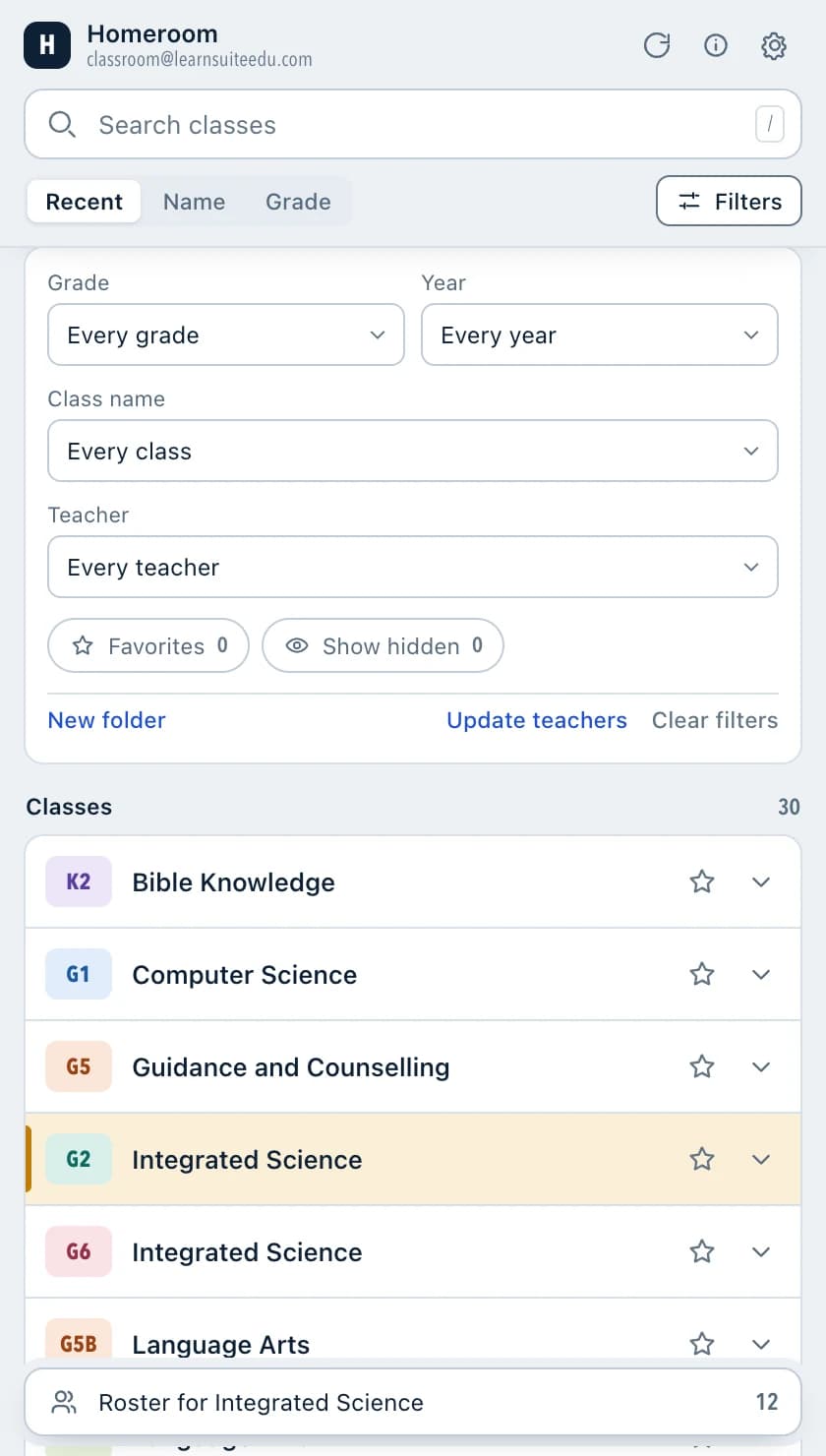
Filter by grade, year, class or teacher
Homeroom reads the grade and the academic year out of the class names your school already uses, so the filters are ready without anyone setting up a taxonomy. The teacher filter is built from each class's People page on request and then cached locally.
- Formats like G4c + 2026-2027, Grade 4 + 2026-2027 and K2 + 2026-2027 are all understood
- Schools that name classes another way keep search, sorting, folders and quick links
- Sort by most recently opened, by name, or grouped by grade
Quick destinations
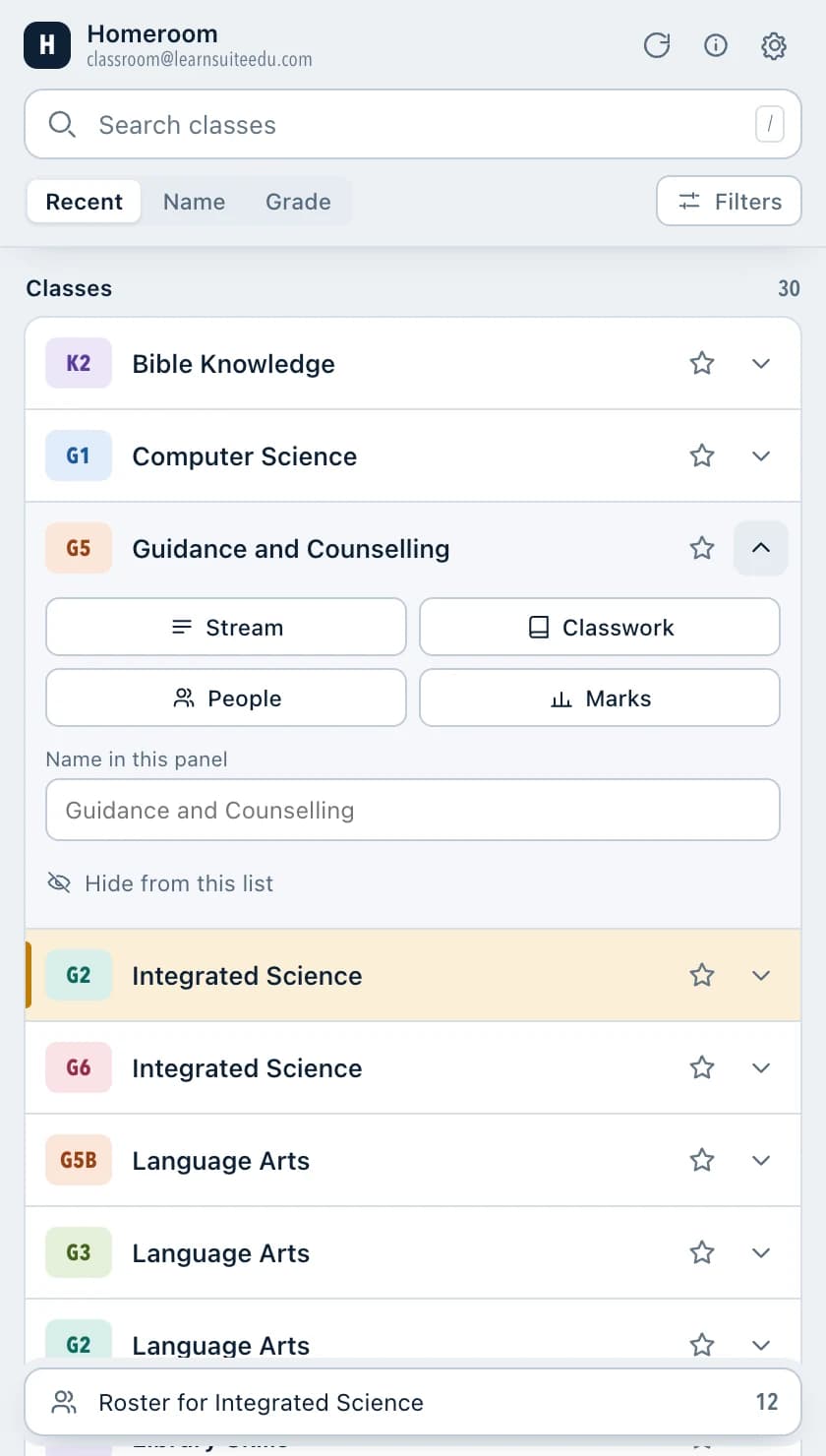
Stream, Classwork, People and Marks, one click away
Expand a class and every page you actually visit is right there, instead of a class page followed by another two clicks. Drive folders and student record cards appear for the classes where Google Classroom offers them.
- Rename a class just for yourself, without touching what anyone else sees
- Hide last year's classes from your list without archiving them
- Star the handful you open every morning, and colour-coded grade badges make a long list scannable
No setup
It explains itself, in the panel
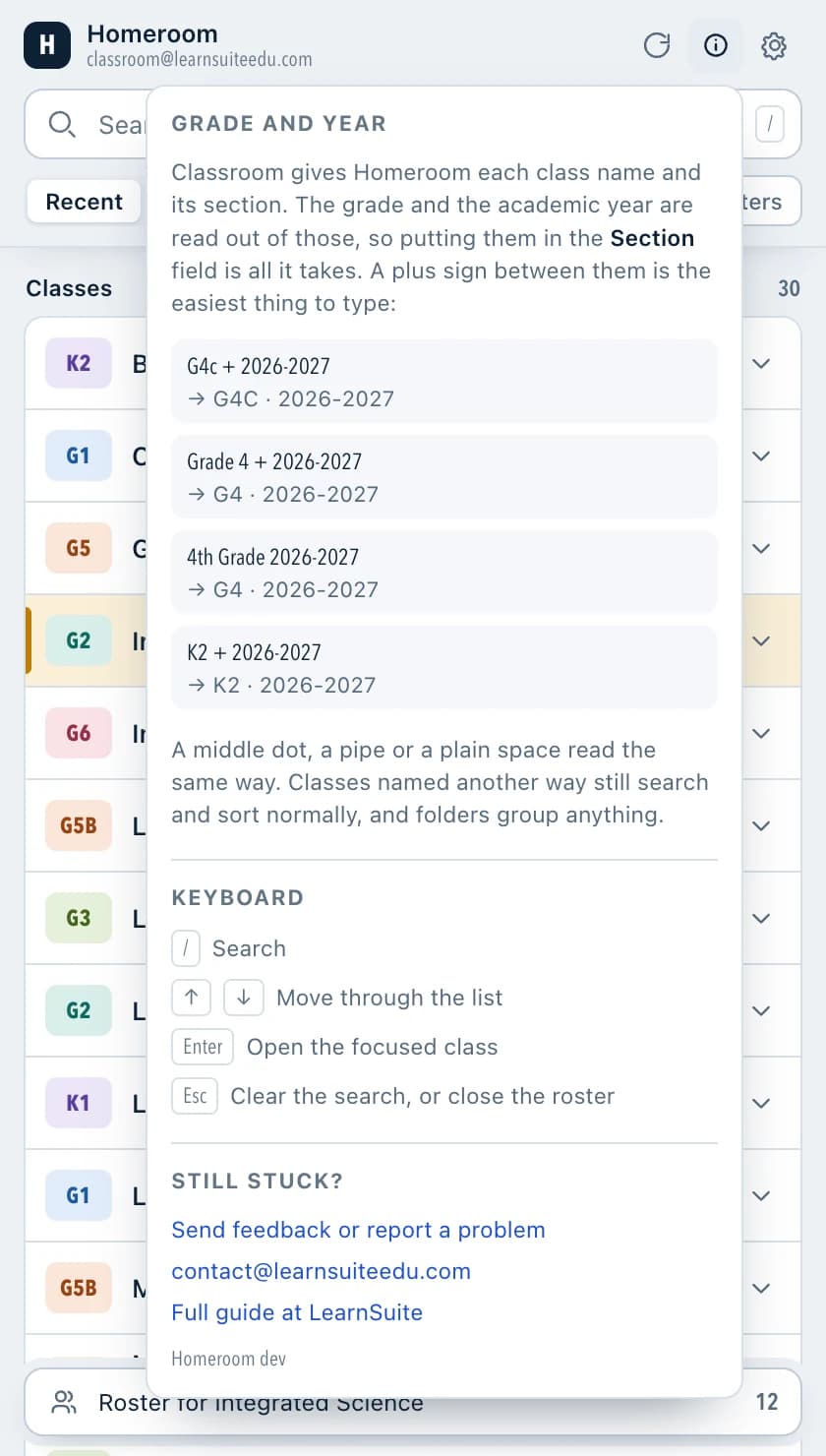
Homeroom never asks a teacher to configure anything, and it does not leave them guessing either. A help popover inside the panel shows exactly which naming formats give you a grade and a year, with the keyboard shortcuts beside them.
- Useful for the person who rolls it out to a staff room, not just the person who installed it
- Folders, favorites, nicknames and hidden classes can be exported and imported as a file
- The panel follows whatever light or dark theme the computer is set to
Everything it does
Small tool, complete about it
Instant search
Class name, teacher, grade, subject, academic year, section and your own nicknames, all from one box.
Grade and year filters
Built automatically from the class names your school already uses. Nothing to set up.
Colour-coded grade bands
Every class carries a grade badge, so a long list can be scanned instead of read.
Virtual folders
Group classes the way you actually teach them. The folders exist in your browser only.
Favorites and recents
The handful you open every morning stay at the top, and recently opened classes sort first.
Private nicknames
Rename a class for yourself when the official name is long or identical to four others.
Hide without archiving
Clear last year's classes out of your own list. Nothing changes for anyone else, and every hide is reversible.
Quick destinations
Stream, Classwork, People and Marks from the row, plus Drive and student record cards where Classroom offers them.
Roster search
While a People page is open, search the roster from the panel. The names are dropped when the browser session ends.
Inline Classroom toolbar
An optional search and filter bar above the native class grid, for the times you are not using the panel.
Multiple Google accounts
Separate folders, favorites and nicknames per signed-in account, and the panel follows when you switch.
Light and dark
The panel follows whatever theme the computer is set to, without a setting to find.
Built for the keyboard
On a Mac, the shortcut that opens the panel is Control + Shift + K.
- Alt + Shift + K
- Open the panel from anywhere in Chrome
- / or Ctrl + K
- Focus the search box
- Up / Down
- Move through the class list
- Enter
- Open the focused class, or the first result
- Esc
- Clear the search, or close the roster
For principals and IT leads
Approving it is a short conversation
Most classroom tools arrive with a scope request, a data processing agreement and a licence count. Homeroom arrives with none of the three, because it never leaves the teacher's browser.
No OAuth application to review
Homeroom requests no Google API scopes, so there is no third party app to approve in the Google Admin console and no access for anyone to audit or revoke later.
No student data to process
Nothing is transmitted off the device, so there is no processor to name, no region to ask about and no breach surface to assess. Rosters are held only while a People page is open.
No contract, no procurement
It is free, with no account and no licence to count. If your domain restricts extensions, Homeroom is allowlisted in the Admin console like any other, and that is the whole rollout.
The full detail, including everything Homeroom keeps on the device and everything it never stores, is in the Homeroom privacy policy.
Looking for more than a faster class list?
Homeroom is a free tool from LearnSuite. The LearnSuite school management system is the bigger product behind it, covering enrollment, attendance, grading, report cards, fees and parent communication for a whole school.
Questions
What schools ask before installing
Is Homeroom free?
Yes. Homeroom is completely free, with no trial period, no paid tier and no account to create. It is a free tool from LearnSuite, the company behind the LearnSuite school management system.
Does Homeroom need access to my Google account?
No. Homeroom requests no Google permissions and no OAuth scopes, and there is nothing to sign in to. It reads the class list from the Google Classroom page you already have open in your browser, the same page you are looking at.
Can Homeroom change or delete anything in Google Classroom?
No. Homeroom is read-only. It never archives, deletes, unenrolls, invites, posts or edits anything. Folders, favorites, nicknames and hidden classes are an organization layer that exists only in your browser, so your colleagues and students see your Classroom exactly as it was.
Where is my data stored?
On your own device, in your browser. There is no Homeroom server and no analytics. Folders, favorites, nicknames, recents and hidden classes are saved in local browser storage and kept separate for each signed-in Google account. Nothing is transmitted anywhere.
Does Homeroom store my students' names?
No, not permanently. While you have a class's People page open, the visible student names are copied into browser session storage so you can search the roster from the side panel. Chrome discards session storage when the browsing session ends. Homeroom never saves grades, assignments, announcements, class codes or rosters.
What if my school names its classes differently?
Everything still works. The grade and academic year filters are built by reading your existing class names and section fields, so formats such as "G4c + 2026-2027", "Grade 4 + 2026-2027", "4th Grade 2026-2027" and "K2 + 2026-2027" are all understood. If your naming does not contain a grade or a year, those two filters simply hide themselves and search, sorting, folders and quick links carry on as normal.
Does it work if I have more than one Google account?
Yes. Homeroom shows the Classroom account you are currently signed in as, and keeps a separate set of folders, favorites, nicknames and hidden classes for each account. Switching accounts in Classroom switches the panel with it.
Does it work for students, or only teachers?
It works for anyone signed in to Google Classroom who sees a class list, including students. It was built for teachers and school staff carrying a long list of classes. Teacher destinations such as Marks only appear where Google Classroom gives them to you already.
Which browsers does Homeroom support?
Google Chrome, version 114 or newer, on Windows, macOS, Linux and ChromeOS. Version 114 is the release that introduced the Chrome side panel that Homeroom uses.
Do our school IT administrators need to approve it?
Only if your Google Workspace domain restricts which Chrome extensions staff may install, in which case Homeroom is allowlisted in the Google Admin console like any other extension. There is no OAuth application to review, no data processing agreement to sign and no vendor account to provision, because Homeroom requests no Google permissions and sends no data anywhere.
Is Homeroom made by Google?
No. Homeroom is an independent tool built by LearnSuite. It is not affiliated with, sponsored by or endorsed by Google. Google Classroom is a trademark of Google LLC.
Stop scrolling for the class you teach every day
Add Homeroom to Chrome, open Google Classroom, press Alt + Shift + K. There is nothing to sign in to and nothing to set up, so you will know within a minute whether it helps.
Google Classroom is a trademark of Google LLC. Homeroom is an independent tool from LearnSuite and is not affiliated with, sponsored by, or endorsed by Google.