Activate Your School Email
Your school email is a Google account. Sign in once with the temporary password from your school, then set your own password.
Before you start
- Your full school email address
- The temporary password your school gave you
Choose how you are signing in: on a computer or on a phone.
On a computer
- 1
Open Gmail
Go to mail.google.com. What you see depends on whether you are already signed in to another Google account.
If you see the Gmail welcome page, click Sign in 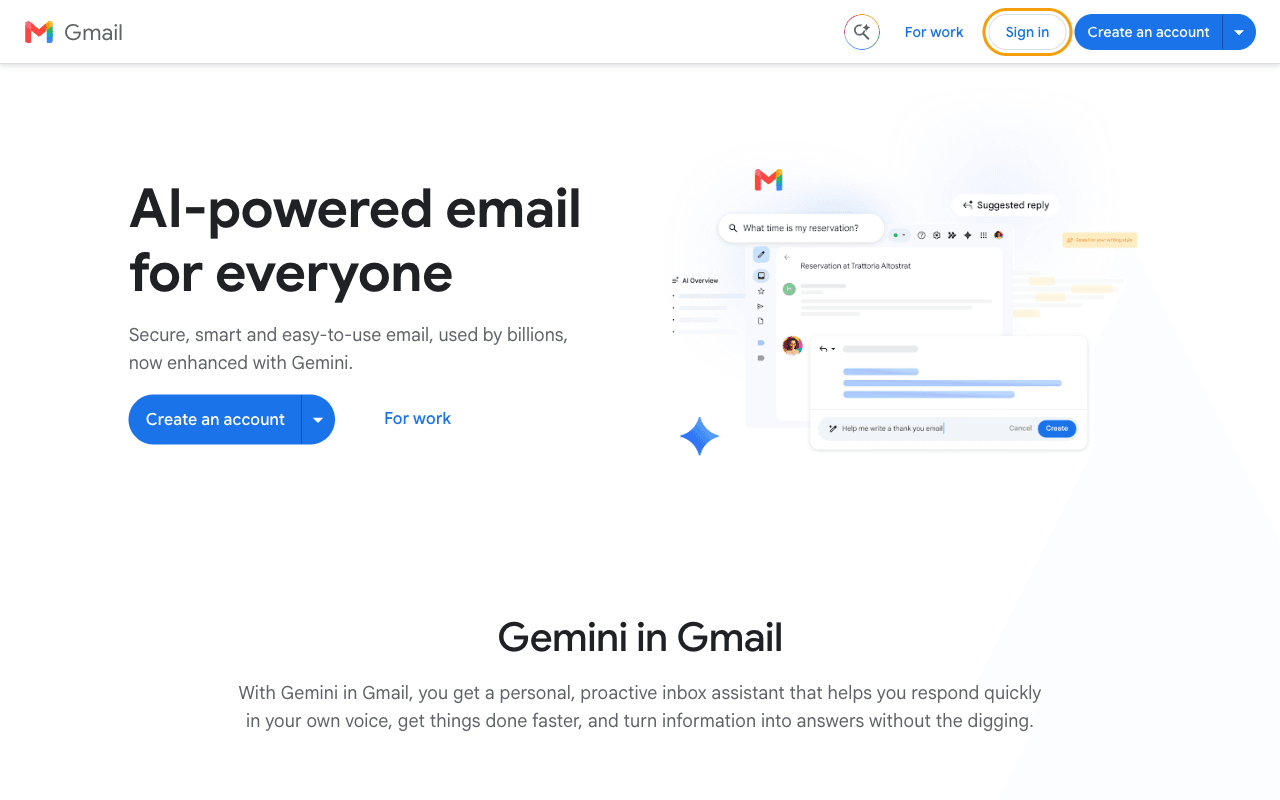
If your own Gmail opens, click your profile picture in the top right corner, then Add another account 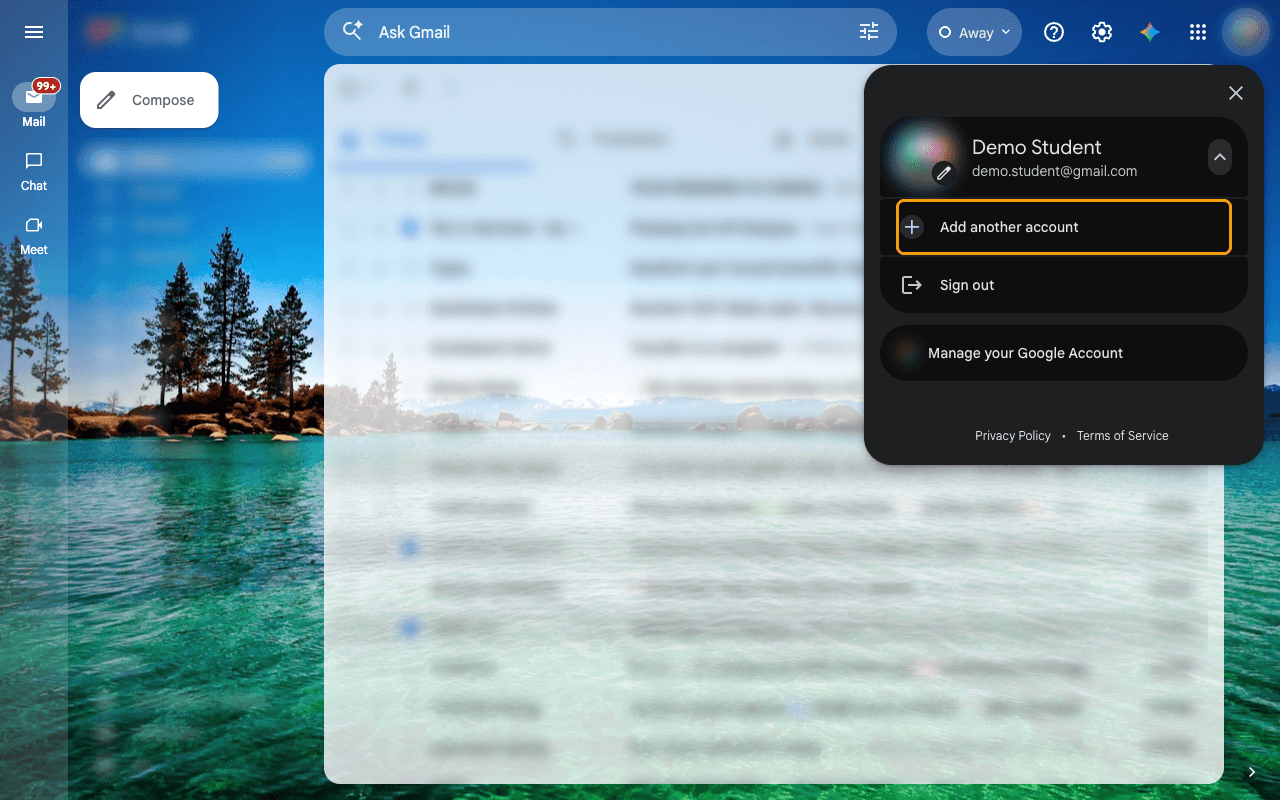
- 2
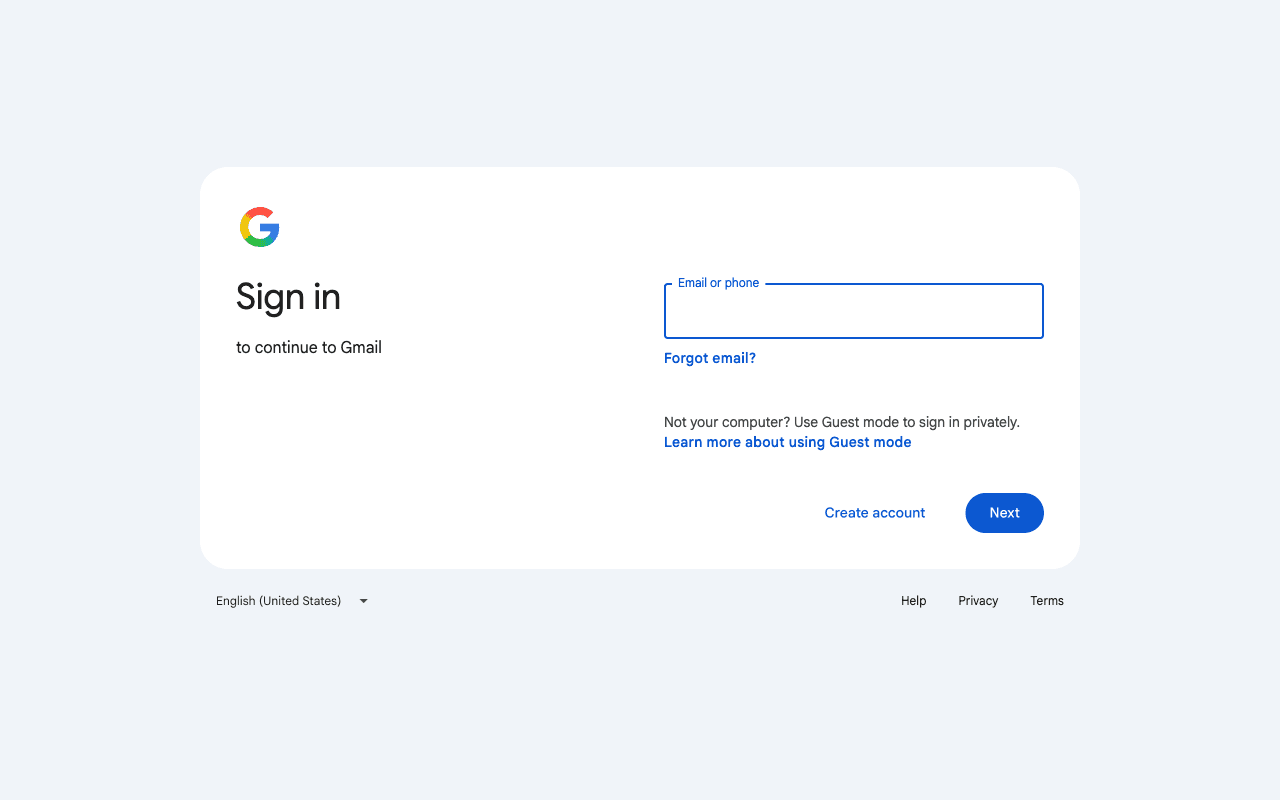
The Google sign-in page opens
You will see a page that says Sign in. If Gmail took you straight here in step 1, that is fine too.
- 3
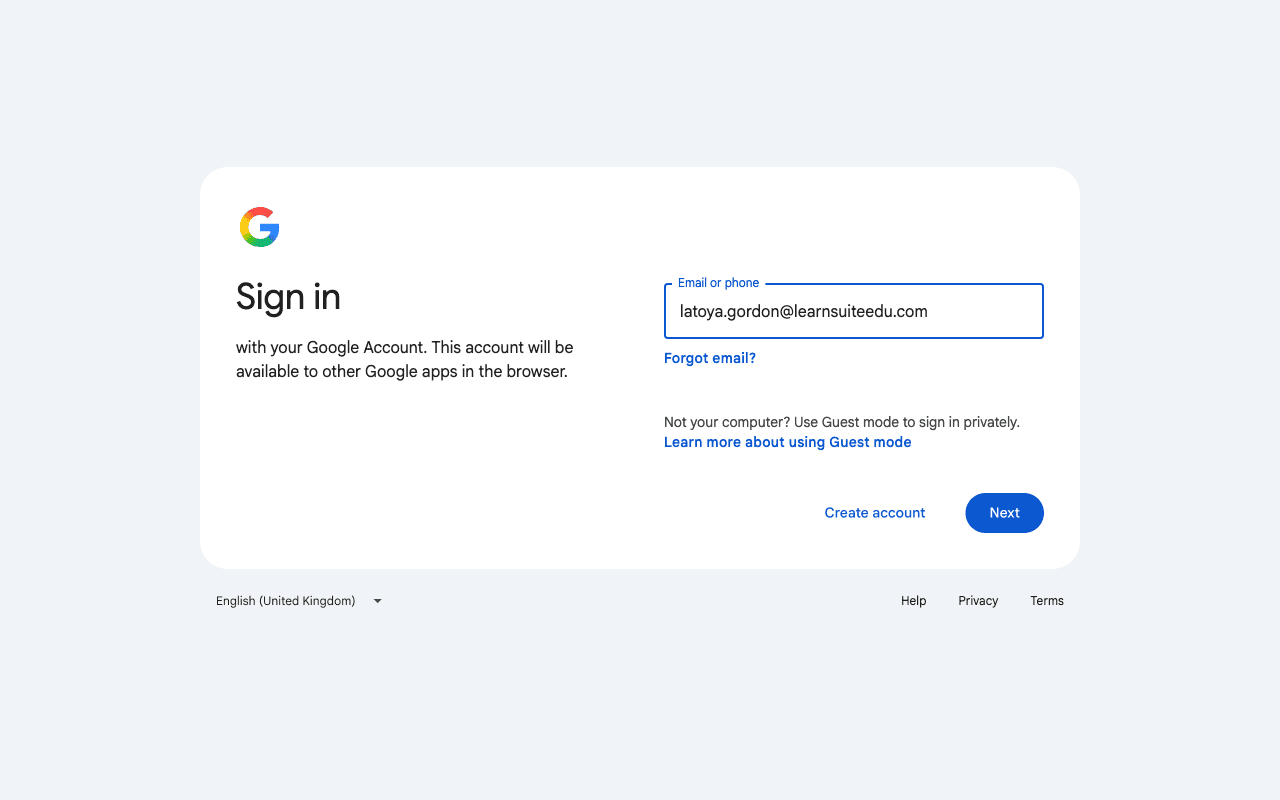
Type your school email
Enter the full school email address your school gave you (for example, [email protected]), then click Next.
- 4
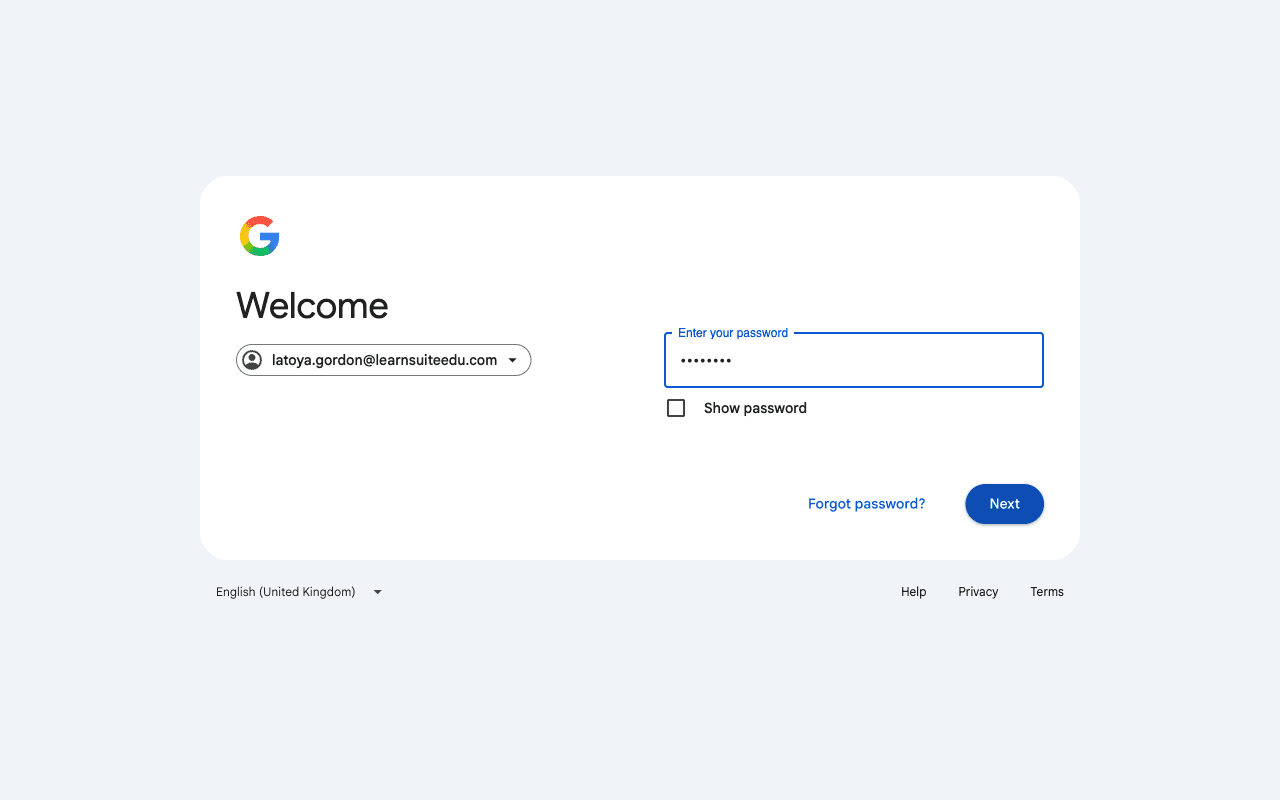
Type your temporary password
Enter the temporary password from your school exactly as it was given to you. Passwords are case sensitive, so check capital letters. Click Next.
- 5
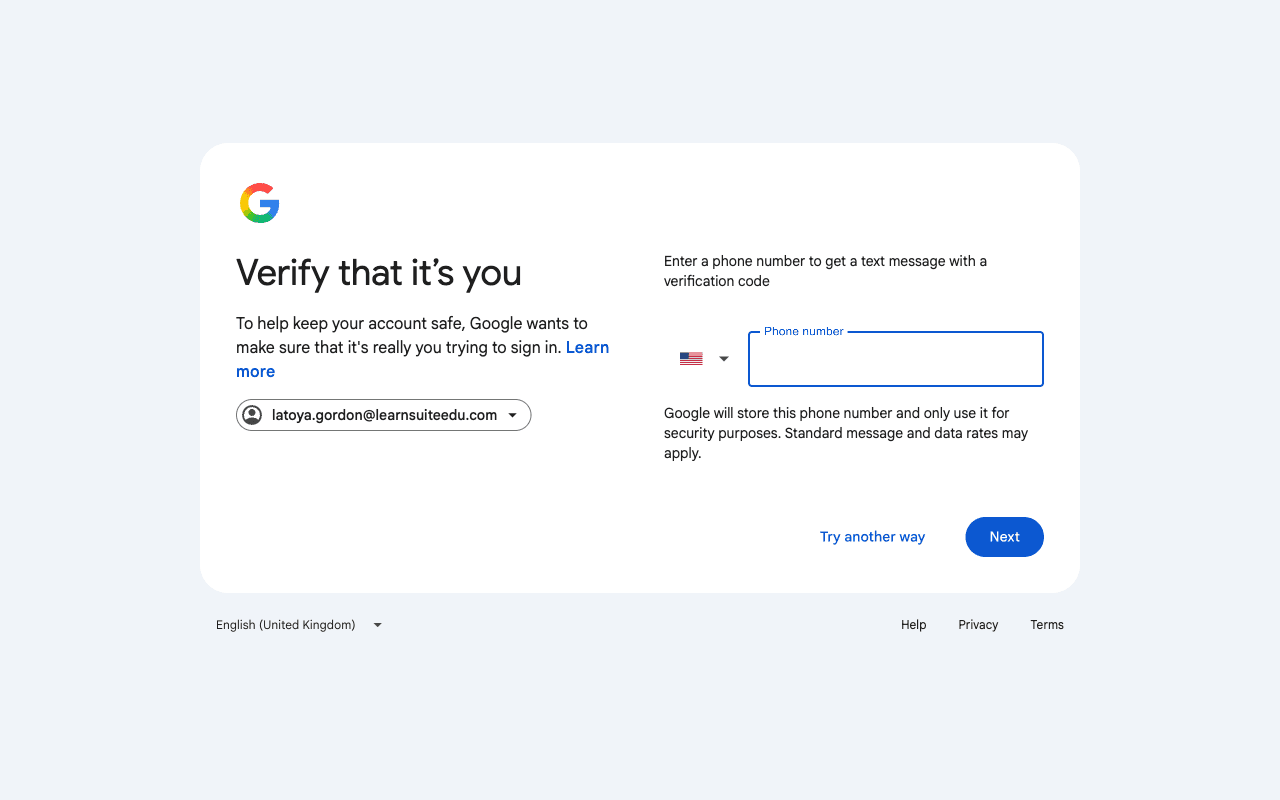
Verify it is you (if Google asks)
Google may ask for a phone number to send you a code. Enter a phone number you can get texts on (a parent's or guardian's phone is fine), click Next, then type the code from the text message. If Google does not ask, skip this step.
- 6
Accept the welcome message
Google shows a Welcome to your new account page. Read it, scroll to the bottom, then click I understand.
The top of the page 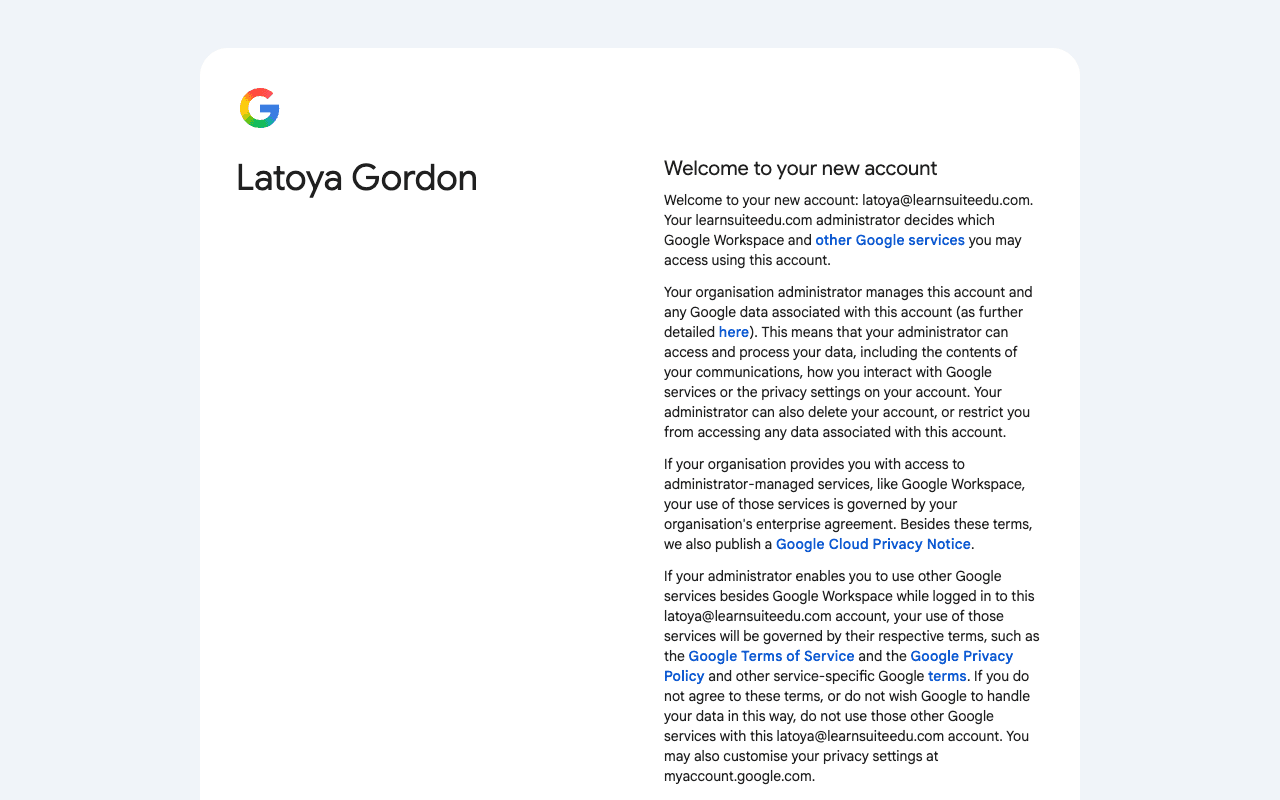
Scroll down and click I understand 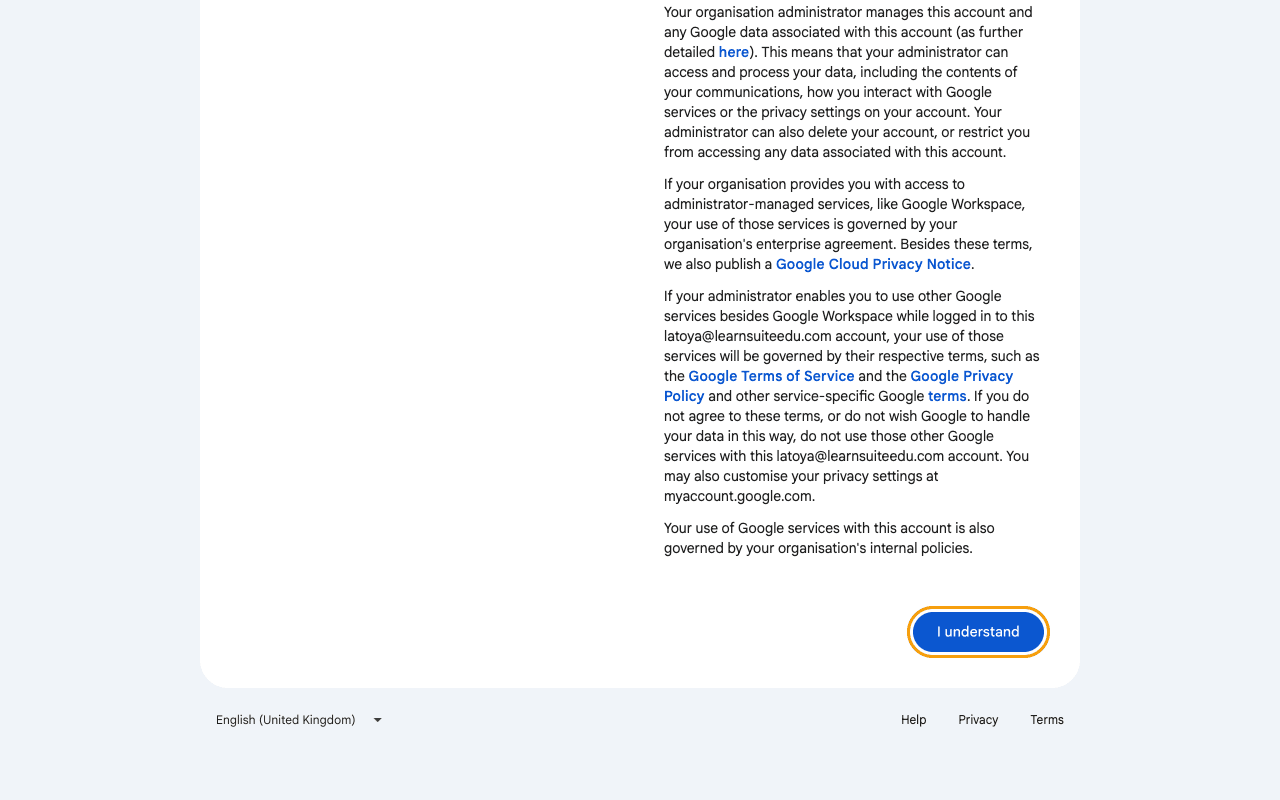
- 7
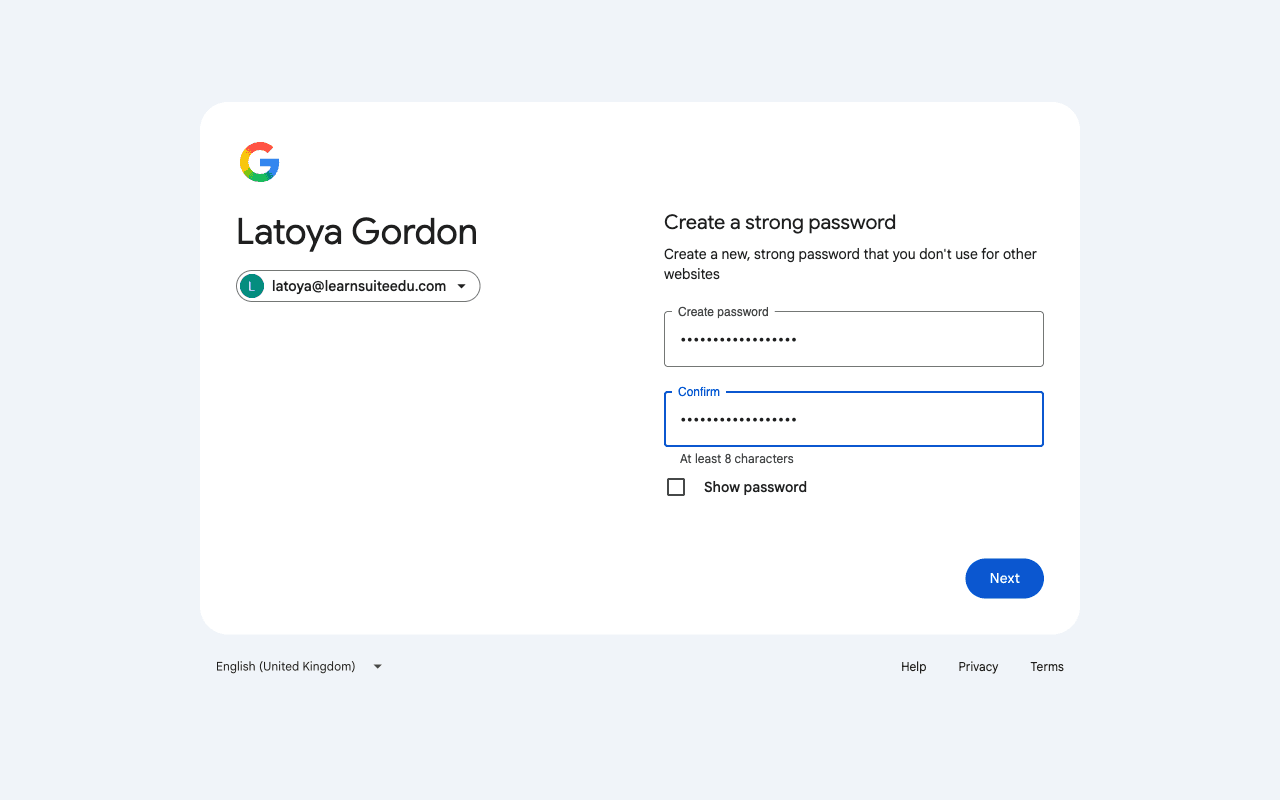
Create your own password
Google asks you to Create a strong password. Choose a new password that only you know (at least 8 characters). Type it in both boxes, then click Next. Your temporary password will stop working after this.
- 8
You are in
Your school inbox opens. From now on, sign in with your school email and the new password you just created.
- 9
Watch for your LearnSuite invite
An invite to sign in to LearnSuite will be sent to your school email. Your school will let you know when to expect it. Open the email and follow the link. If you do not see it, check your Spam folder.
On a phone
- 1
Open the Gmail app
Install the Gmail app from the App Store or Google Play if you do not have it. Open it and tap your profile picture in the top right corner.
- 2
Add your school account
Tap Add another account, then choose Google.
- 3
Sign in with your school email and temporary password
Type your full school email, tap Next, then type the temporary password from your school. If Google asks to verify it is you, enter a phone number you can get texts on and type in the code it sends.
- 4
Accept and create your own password
Tap I understand on the welcome page, then create a new password that only you know.
- 5
Watch for your LearnSuite invite
An invite to sign in to LearnSuite will be sent to your school email. Your school will let you know when to expect it. Open the email and follow the link. If you do not see it, check your Spam folder.
Temporary password not working?
Your school manages your email account, so only your school can reset it. Contact your school office or form teacher and ask them to reset your school email password.